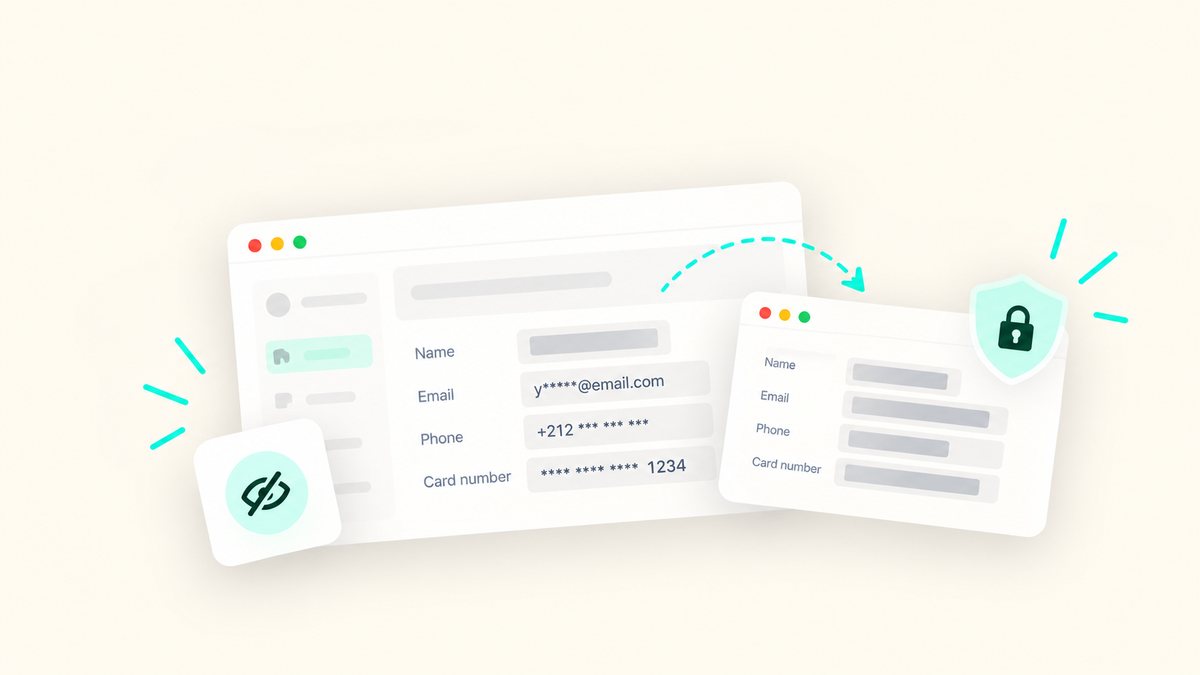
Product screenshots are made to be shared: on your landing page, in sales emails, in help articles, in demos people forward to their team. That's exactly why a stray customer email, revenue figure or API key in one of them is a real problem. Once it's out, it can be copied, cached and passed on long after you notice.
This guide covers what to look for, how to avoid capturing it in the first place, and how to redact what you can't avoid, in a way that actually removes it.
1. Know what counts as sensitive
Go through each screenshot with this list before it goes anywhere:
- People: customer and teammate names, email addresses, phone numbers, avatars and profile photos.
- Money: revenue, invoices, prices you only show some customers, account balances.
- Secrets: API keys, tokens, passwords, webhook URLs, anything in a settings or developer page.
- Internal details: internal URLs and project names, other customers' logos, private Slack or email previews.
- Your own desktop: browser tabs and bookmarks, notification pop-ups, other open apps in the corner of the screen.
2. The best redaction is not capturing it
Editing images afterwards is the fallback. It's faster and safer to take clean screenshots from the start:
- Use a demo account with realistic fake data. Names like "Ava Martin" and companies like "Northwind" look natural and protect real customers. Empty screens look unfinished, so seed enough data to make the product look used.
- Use a separate browser profile with no bookmarks bar, no extensions and no logged-in personal accounts.
- Turn on Do Not Disturb so no message preview appears mid-capture.
- Never screenshot real secrets. If a settings page must appear, show it with a revoked or example key.
3. Know the difference between hiding and removing
This is the most common mistake. Many tools "blur" an area by drawing a blurred layer on top of the screenshot. It looks hidden, but the original image file is unchanged, and anyone who opens the image on its own, or inspects the page, sees everything underneath.
Real redaction changes the pixels of the image file itself. A quick test for any tool: open the image directly in a new tab. If the private data is visible there, it was never removed.
4. Redact strongly enough
Not all blurring is equal. Light blur or small pixel blocks on short text can sometimes be partly reconstructed, and public tools exist that try. So:
- Use strong redaction: large pixel blocks plus blur, or a solid box. The goal is that the text is gone, not just soft.
- Cover the whole value, with a little margin. Partial redaction (the first letters of an email) can be enough to identify someone.
- Treat secrets differently: if a real API key or password ever appeared in a screenshot you shared, rotate it. Redaction protects the image, not a key that was already exposed.
5. If something already went out
Replacing the screenshot is step one, but copies can live on: in browser caches, in a content delivery network (CDN) in front of your site, in link previews on Slack or LinkedIn, and in emails people forwarded. Replace the image, purge the old address from your CDN if you use one, and rotate any secret that was visible. Then check the places you shared it.
How to do this in DemoFlows
DemoFlows has a Blur / redact tool in the editor (on every plan, including the free trial). Select it, drag over anything private, and click Apply blur. The areas are pixelated and blurred into a new copy of the screenshot, that copy replaces the original on every step that uses it, and the original file is deleted. Your hotspot, zoom area and highlights stay exactly where they were.
For anything you want to point at rather than hide, use a highlight instead: see how to create an interactive product demo for the full workflow.
Frequently asked questions
Is blurring enough to protect personal data?
Strong redaction that changes the image file is a good safeguard. A blur drawn on top of an image is not, because the original stays downloadable. Using fake demo data is better still.
Should I blur names too?
If they're real people, yes. If they're demo data you created, leaving them visible makes the screenshot easier to follow.
What about screenshots that show my own team?
Ask them first, or use demo profiles. Internal doesn't mean private once a demo is shared outside the company.
Make your first interactive demo
Upload a few screenshots, add hotspots and tooltips, and share a link in minutes. 7-day free trial, no card needed.
Start your free trial